
Both the DiabloSport inTune i3 and the Trinity 2 (T2) ship with a default set of datalog parameters (PIDs) chosen by DiabloSport for your vehicle. That default set is fine for basic diagnostics, but it is almost never the list a calibrator needs. Adding your own channels takes about two minutes once you know where the menu is — and the menu is in a completely different place on each device.
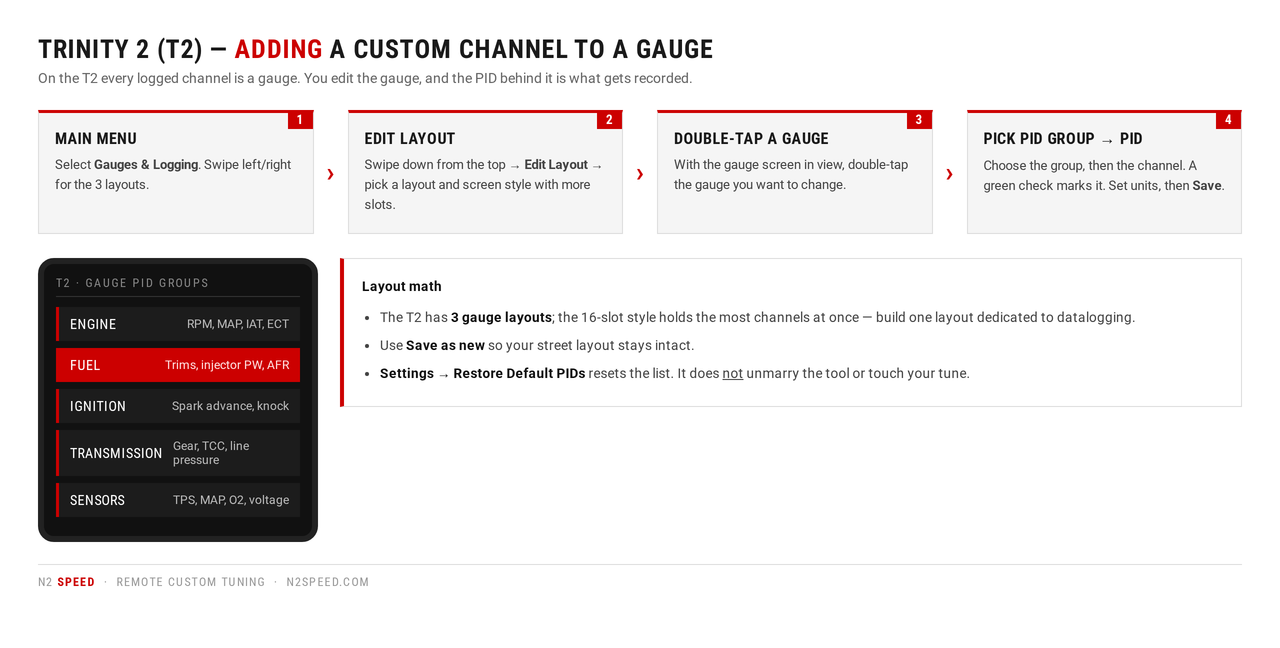
Short version: on the i3 it is Scan Tool → Data Logging → Configure → PID Select. On the Trinity 2 it is Gauges & Logging → double-tap a gauge → pick a PID group → pick the PID: on the T2 the gauge layout is the log layout.
Before you start
- Update the deviceRun the latest firmware and calibration update before logging or flashing. Old software causes odd behavior and empty PID lists.
- Key onPlug into the OBD-II port under the driver's side dash and turn the ignition ON (or start the engine). With the key off, the vehicle PID list will not populate.
- Healthy batteryLog with a good battery. Never leave a charger connected while flashing a tune.
- Know the askHave the channel list your tuner sent you open on your phone. If you do not have one, email sales@n2speed.com and we will send the list for your combination.
Part 1 — inTune i3: adding custom PIDs
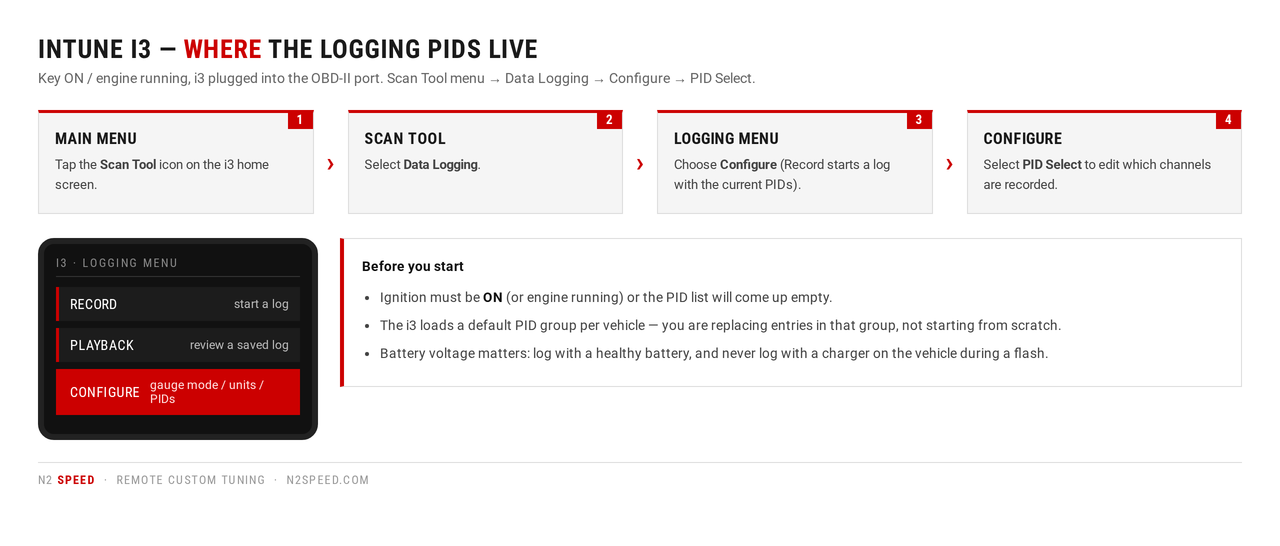
- From the i3 Main Menu, select the Scan Tool icon.
- Select Data Logging. You will see three options: Record, Playback and Configure.
- Select Configure. This is where Gauge Mode, Gauge Units and PID Select live.
- Select PID Select. The i3 loads the list of parameters currently being logged for your vehicle.
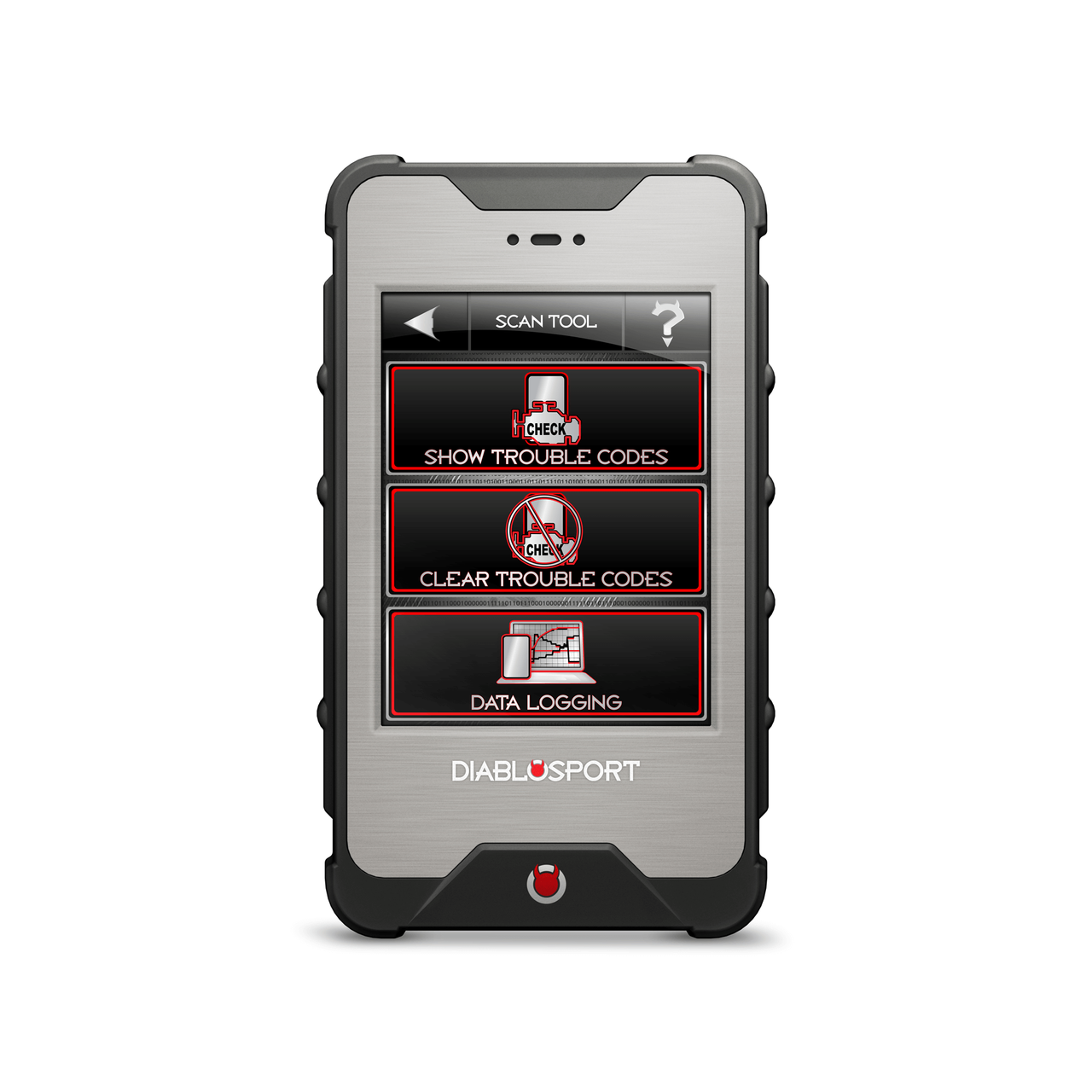
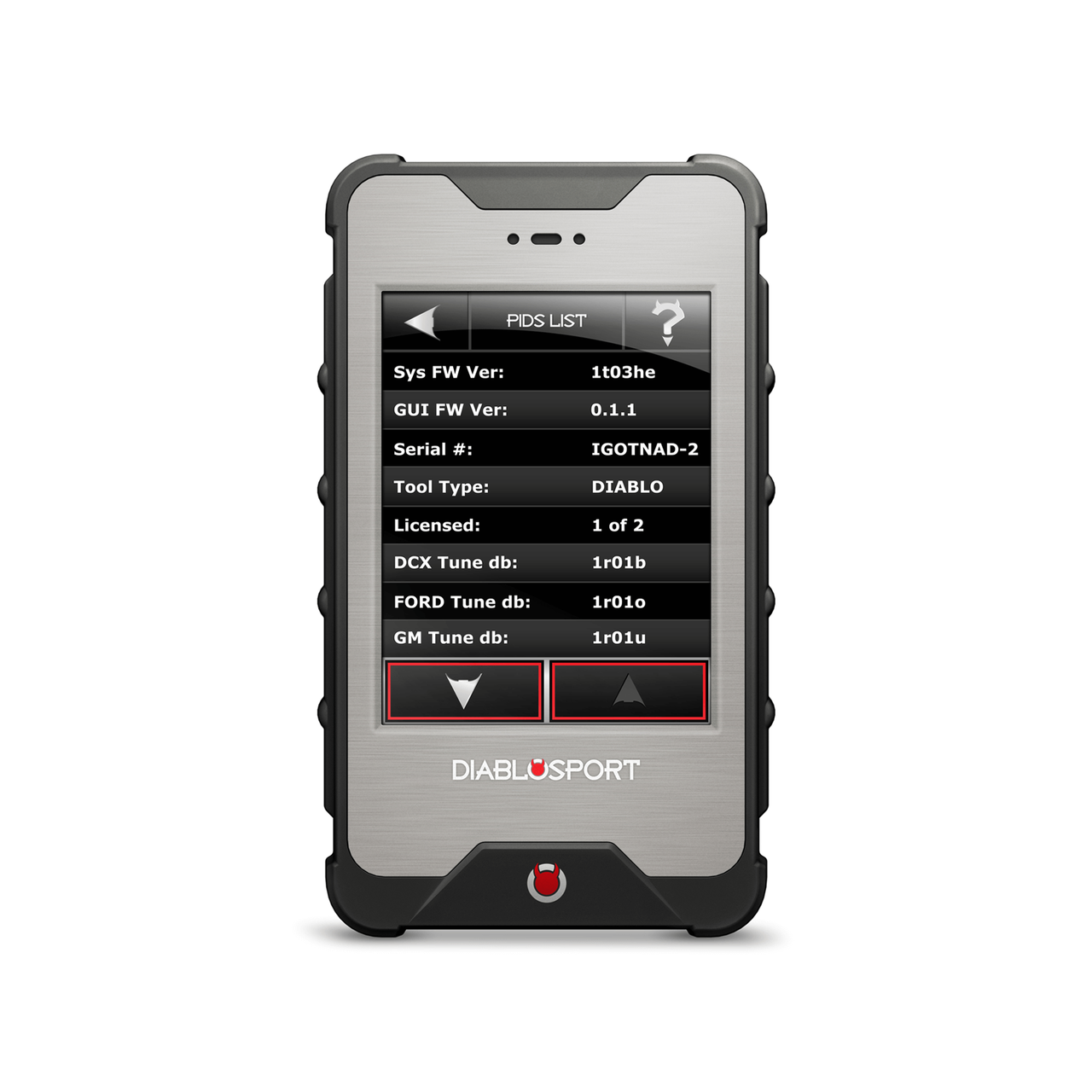
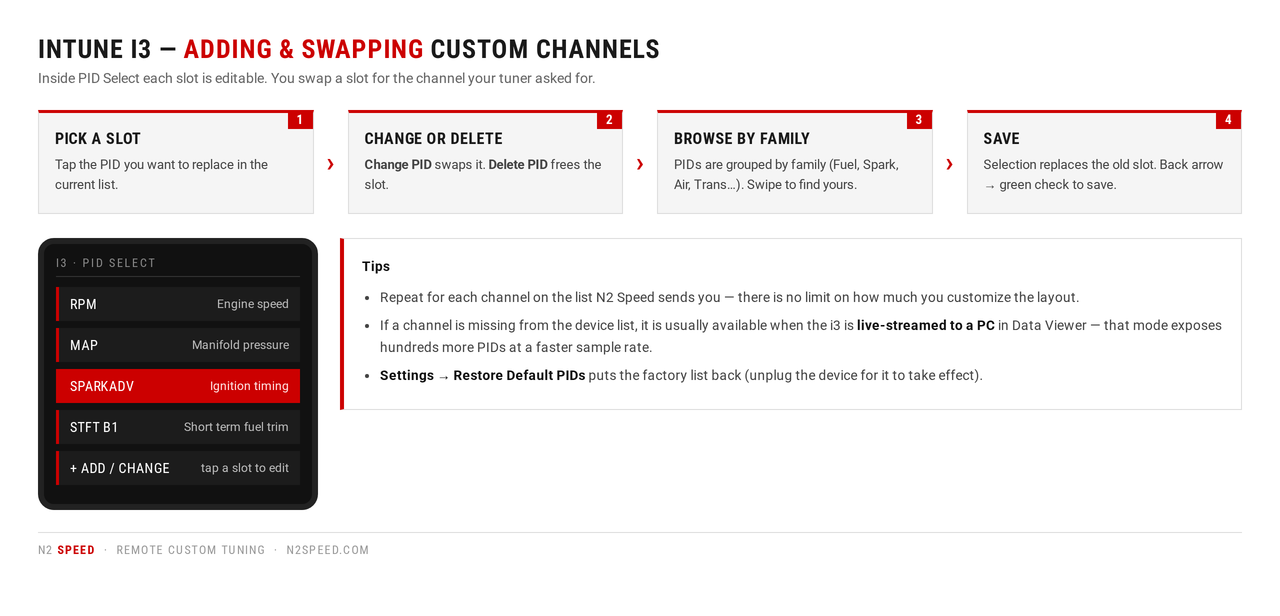
- Tap the PID slot you want to replace. The i3 asks whether you want to Change PID or Delete PID.
- Choose Change PID. You are shown every parameter available for your vehicle, organized by family (fuel, spark, air, transmission and so on). Scroll to the channel you need and select it — it replaces the slot you started from.
- Repeat until every channel on your tuner's list is in the log. There is no practical limit on how much you customize the layout.
- Press the back arrow, then the green check to save your PID selections.
Part 2 — Trinity 2 (T2): adding custom channels
The T2 does not have a separate "PID Select" screen. Every channel you want in the log is assigned to a gauge, and the gauge layout is what gets recorded — so the trick is to build one layout dedicated to logging.
- From the Main Menu, select Gauges & Logging. The first of three gauge layouts appears; swipe left/right to move between them.
- Open the pull-down menu by swiping down from the top of the screen, then select Edit Layout.
- Pick one of the three layouts and swipe through the screen styles. Choose the style with the most slots (the 16-gauge style) so you can carry the most channels at once. Press Select.
- Press Save, then Save as new and name it something like DATALOG so your street layout stays untouched.
- With the gauge screen in view, double-tap the individual gauge you want to change.
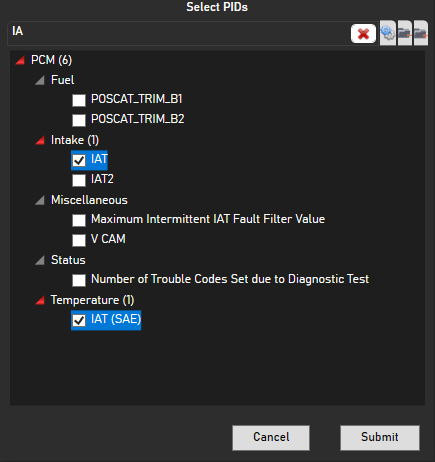
- Select a PID group from the list (swipe up/down to see them all), then select the PID. A green check mark appears next to the selected PID.
- If the channel is a temperature or a speed, use the toggle to pick Imperial or Metric units.
- Select Save. Repeat for each remaining gauge until the whole requested list is on screen.
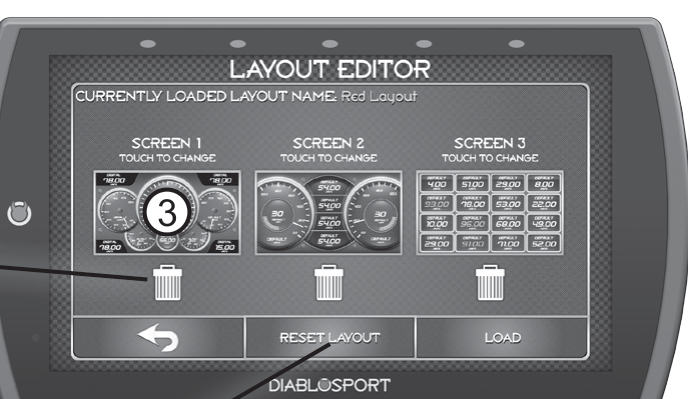
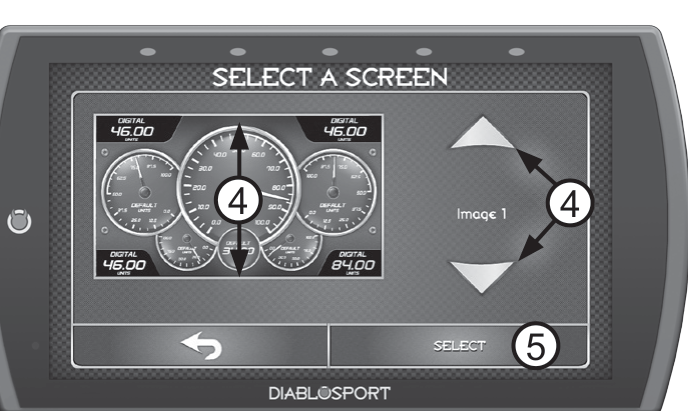
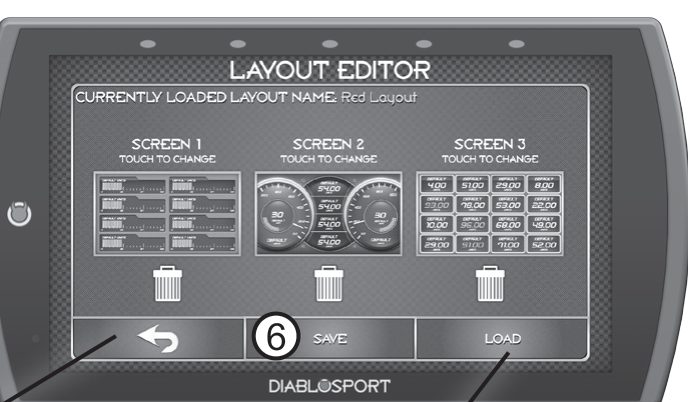
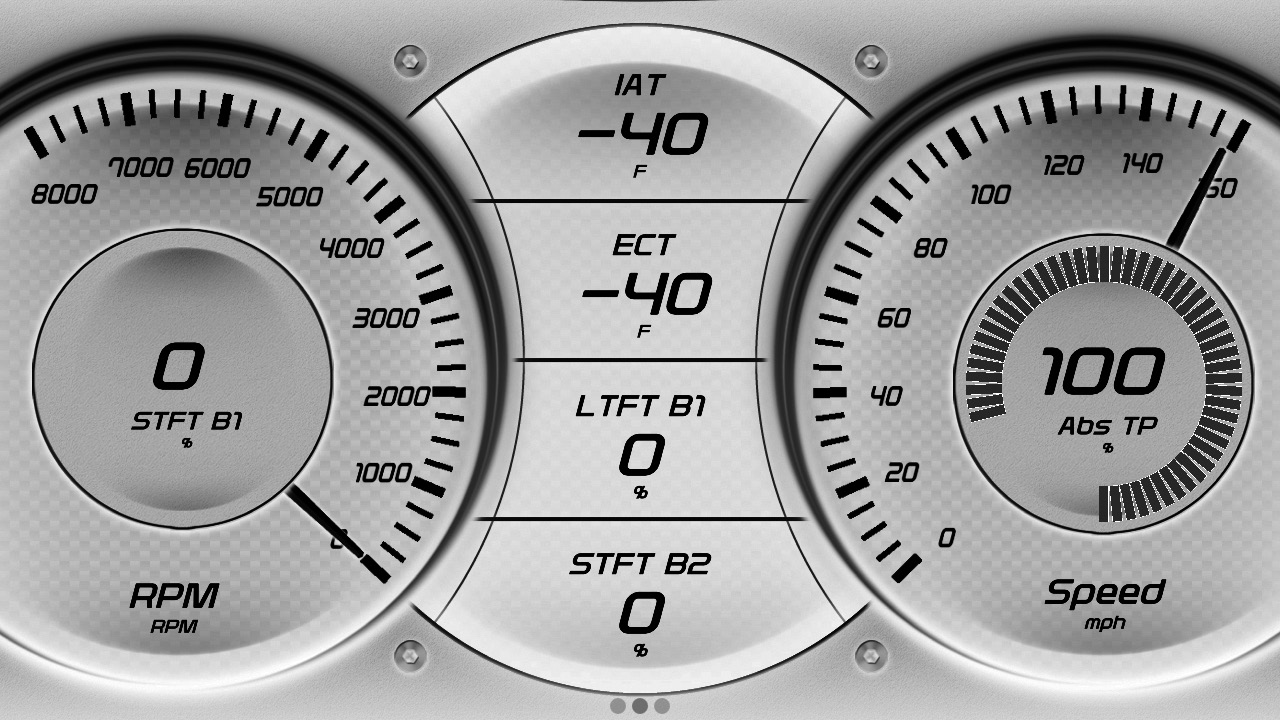
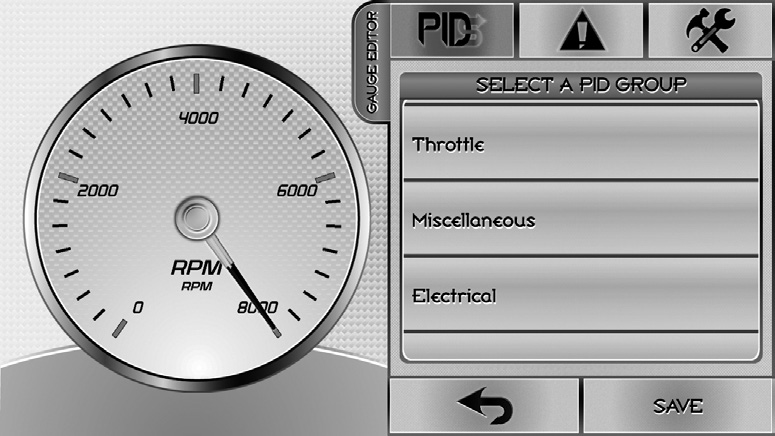
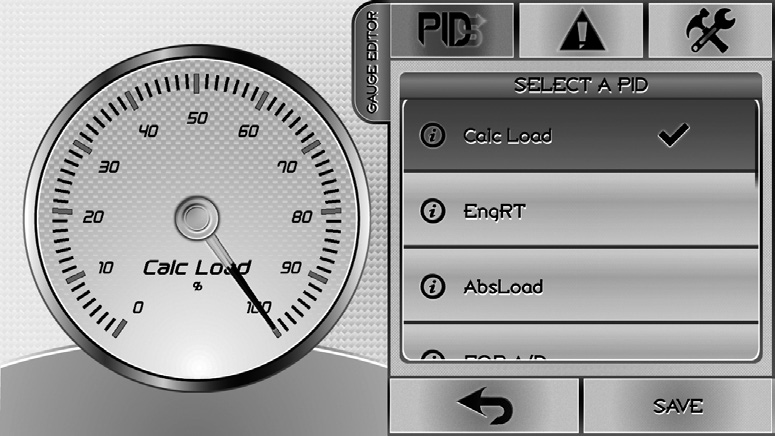
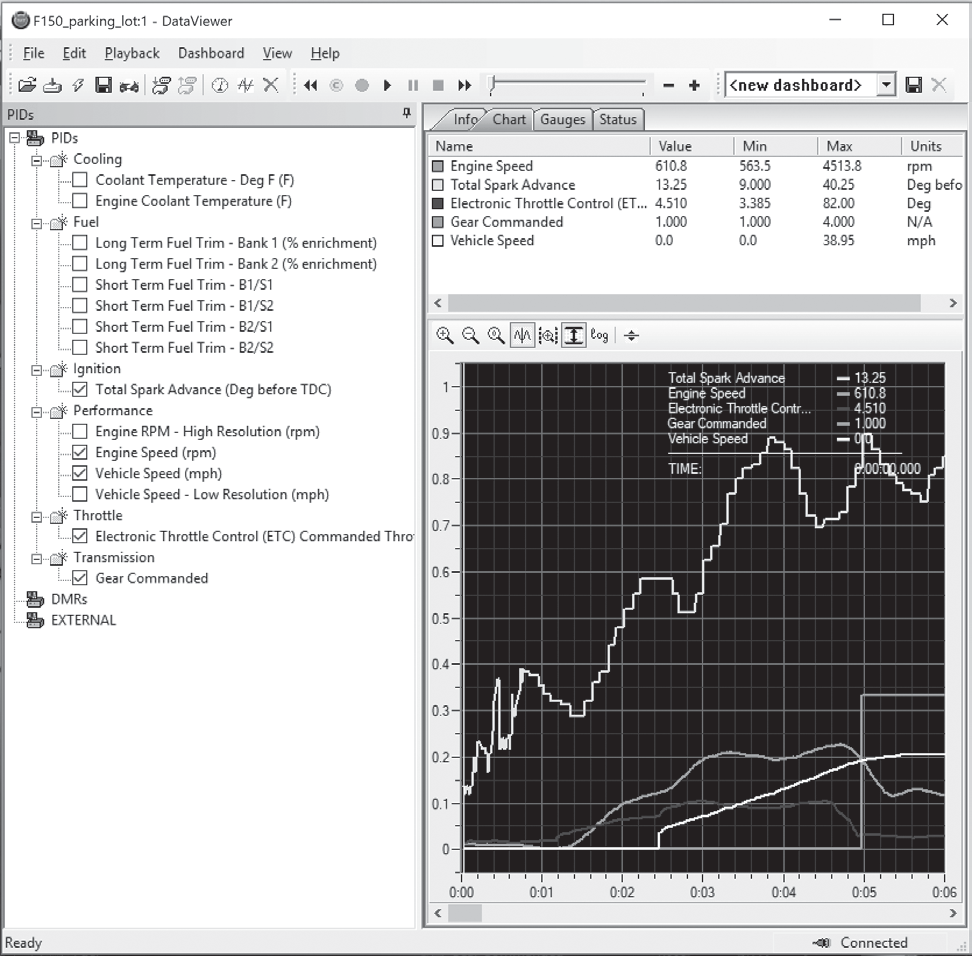
Trinity 2 and DataViewer screen images from DiabloSport product documentation. i3 screens from the inTune i3 sold here.
Part 3 — Recording the log
- Trinity 2: with the gauge screen in view, swipe down from the top and press Record. The LED above the recording icon glows blue while it is recording. Press Stop when you are done and save the log with a name you will recognize.
- inTune i3: Scan Tool → Data Logging → Record. Stop and save the same way.
- Drive the conditions we asked for. A usable log is normally a fully warm engine, a minute of idle, some light cruise, then two or three wide-open pulls in a gear near 1:1 — one pull per file where possible.
- Note anything unusual (a stumble, a surge, which gear it happened in) and send it with the file. Context saves a revision cycle.


Part 4 — Sending the log to N2 Speed
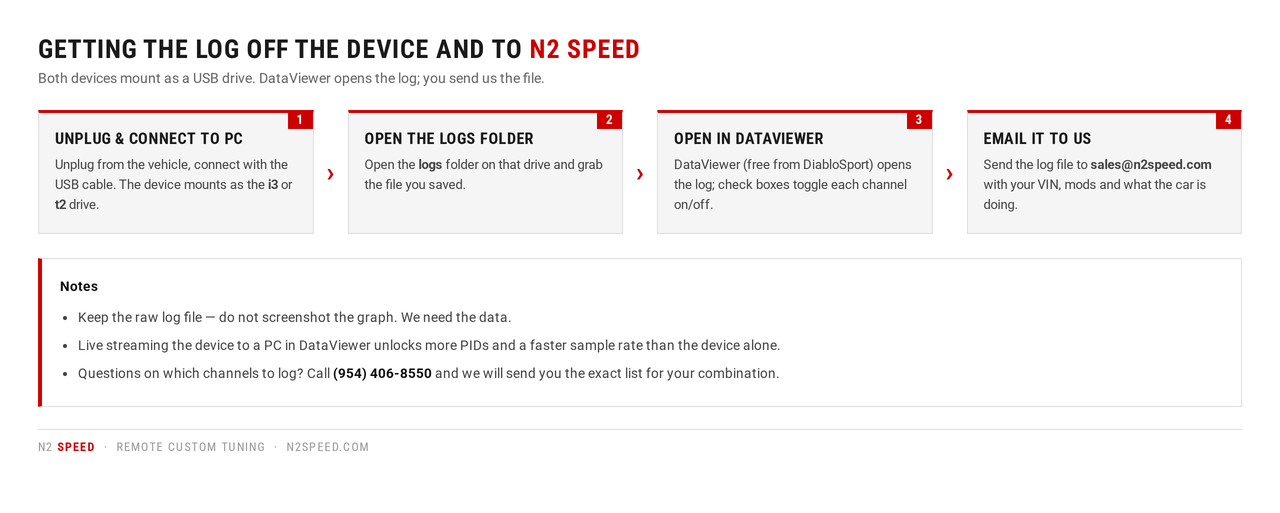
- Unplug the device from the vehicle and connect it to your computer with the USB cable. It mounts as a removable drive named t2 or i3.
- Open the logs folder on that drive and locate the file you saved.
- Open it in DataViewer (free download from DiabloSport's downloads page). The check boxes on the left toggle each recorded channel on and off.
- Email the log file to sales@n2speed.com along with your VIN, current mod list, fuel used, and a note on what the vehicle is doing.
Channels we usually ask for
Exact names vary by platform and by device firmware. This is the general set — if a name below does not appear on your device, look for the closest equivalent in the same PID family, or ask us.
| What it is | Typical PID name | Why we want it |
|---|---|---|
| Engine speed | RPM | Every log. Ties every other channel to a point in the pull. |
| Manifold pressure | MAP (kPa) | Load reference on Dodge / Jeep / RAM and on boosted cars. 101 kPa ≈ atmospheric. |
| Intake air temp | IAT / MAT | Heat soak shows up here first — it explains timing pulled on a hot pass. |
| Coolant temp | ECT | Proves the car was at operating temperature before the pull. |
| Spark advance | SPARKADV / Timing | What the tune is actually commanding at load. |
| Knock retard | Knock / Spark correction | The single most important safety channel. Any retard under load gets reviewed. |
| Fuel trims | STFT & LTFT (both banks) | Shows fueling error at cruise before we touch the WOT tables. |
| Air/fuel ratio | AFR / equivalence ratio, wideband if fitted | Factory O2 data at WOT is limited — a wideband is worth adding. |
| Throttle | TPS / accelerator pedal | Confirms the pull was actually wide open. |
| Vehicle speed & gear | VSS, current gear | Needed to line up shift points and gear-based timing. |
| Battery voltage | Volts | Low voltage skews injector and sensor data. |
Not sure which channels to log?
Send us your vehicle, mod list and what the car is doing. We will send back the exact channel list for your combination — and if you are already a tuning customer, the log review is part of your revisions.
FAQ
How many PIDs can the device log at once?
On the i3 you are editing a defined list of slots, so add the channels that matter most and drop ones you do not need. On the Trinity 2 the count is limited by the gauge layout — the 16-slot screen style holds the most. If you need more channels than the device holds, record two logs of the same pull with different layouts, or live-stream to a PC with DataViewer for a larger PID set.
Do I have to add the PIDs to a gauge to log them on a Trinity 2?
Yes. On the T2 the recording follows the gauge layout that is on screen, which is why we recommend building a separate layout named for logging and saving it with "Save as new".
Will changing PIDs affect my tune?
No. PID selection and gauge layouts are display and logging settings only. Even "Restore Default PIDs" leaves your tune and the tool-to-vehicle marriage alone.
The PID list is empty or greyed out.
Ignition is not in the ON position, the device is not fully communicating with the vehicle, or the device needs a firmware/calibration update. Cycle the key, reseat the OBD-II connector, and update the tool.
Can I send a screenshot of the graph instead of the file?
Please do not. We need the raw log file — the resolution in the data is what tells us whether timing is being pulled and where.
More tuning tips: Remote Tuning Tips index · MAP kPa to boost chart · HP Tuners channel list · Dodge / Jeep / RAM DTC list